
Dashboard Guide
OCR KTP service will allow you to extract information from KTPan ID card. After successfully sign in to Verihubs Dashboard, click the left side menu 'Document Scanning' then click the submenu 'OCR KTP'. There are 3 features that can be accessed for face recognition, which are Demo, Summary, and Transaction Logs.
🎈DEMO
After clicking 'OCR KTP', click on DEMO on the sidebar menu. You can easily try our face services just a click away.
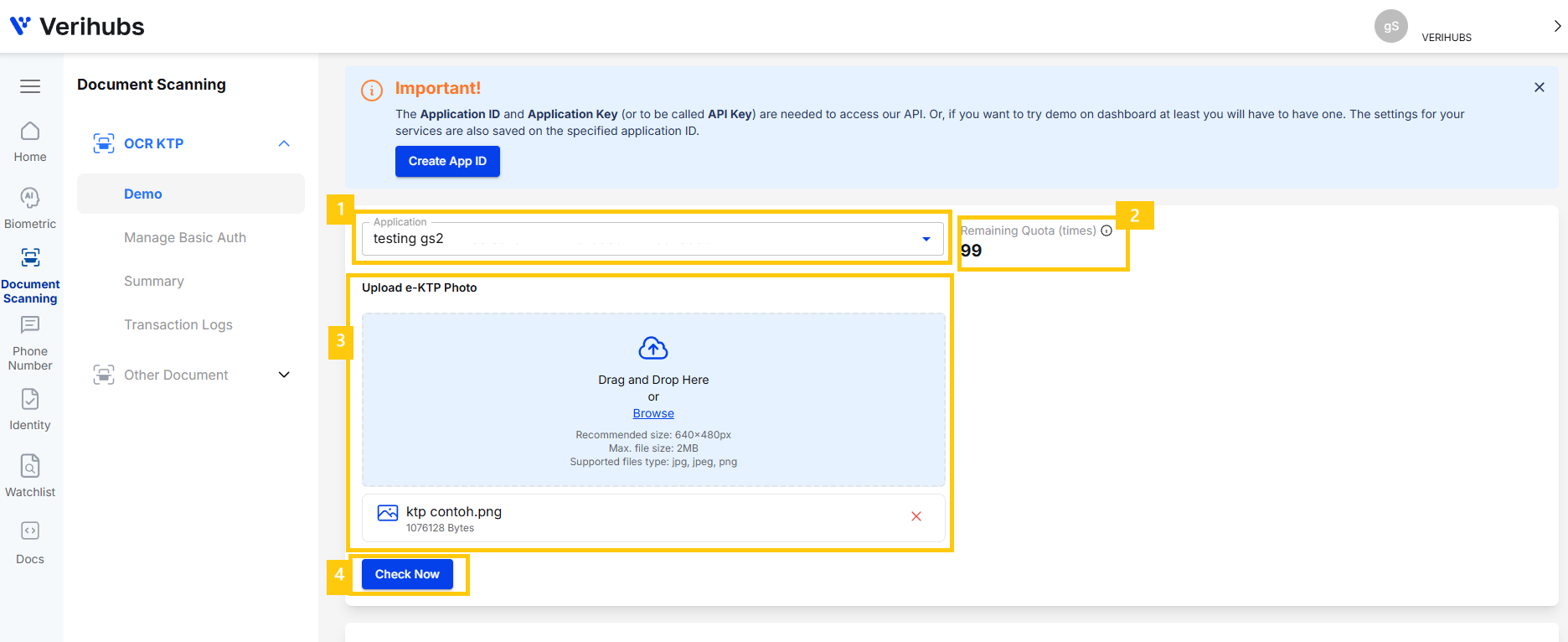
To try DEMO you can follow this steps :
- Select which Application Name you want to try this DEMO on. Make sure you have create one, tho.
- You will be given a quota for each Application Name to try the DEMO. Your quota will be shown here.
- Choose the KTP image you want to extract. You can drag the photo to the box, or browse from your documents.
- Click on "Check Now" and the extracted text will be shown on the result.
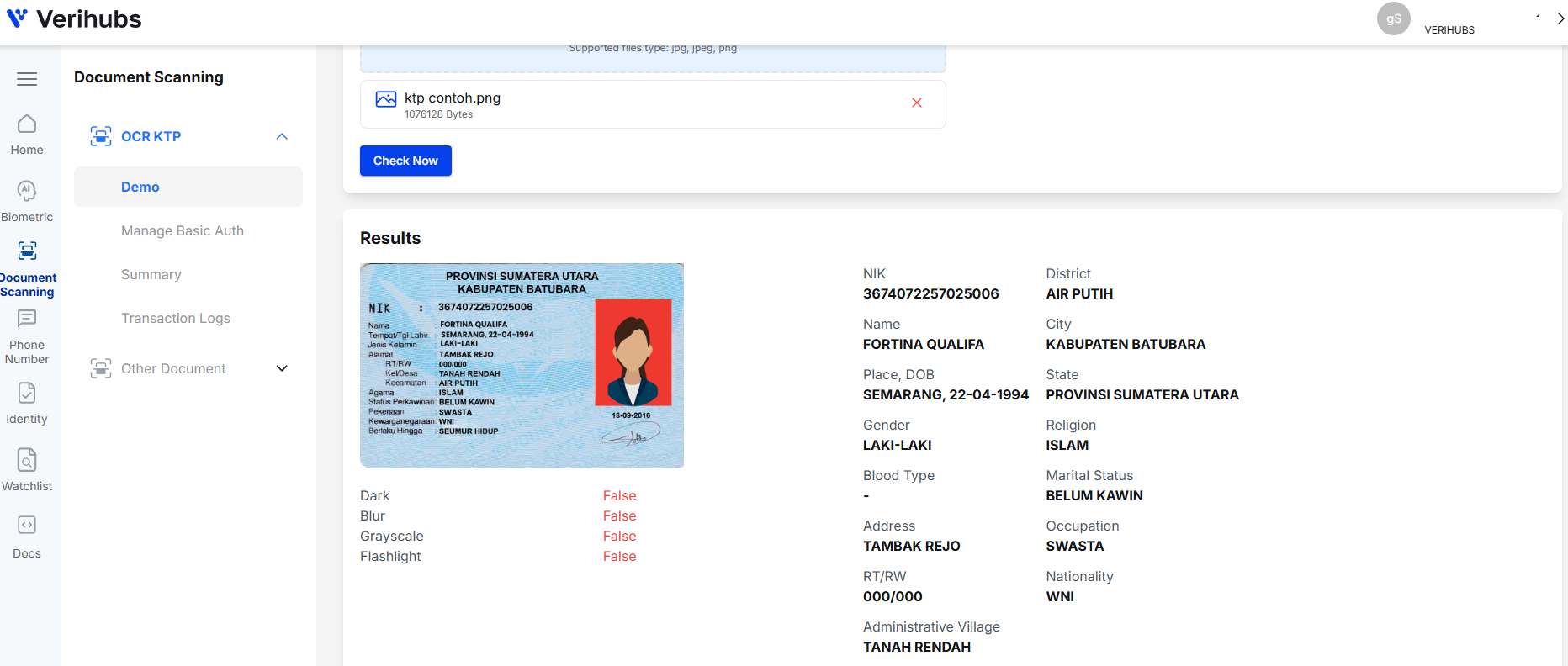
🎈SUMMARY
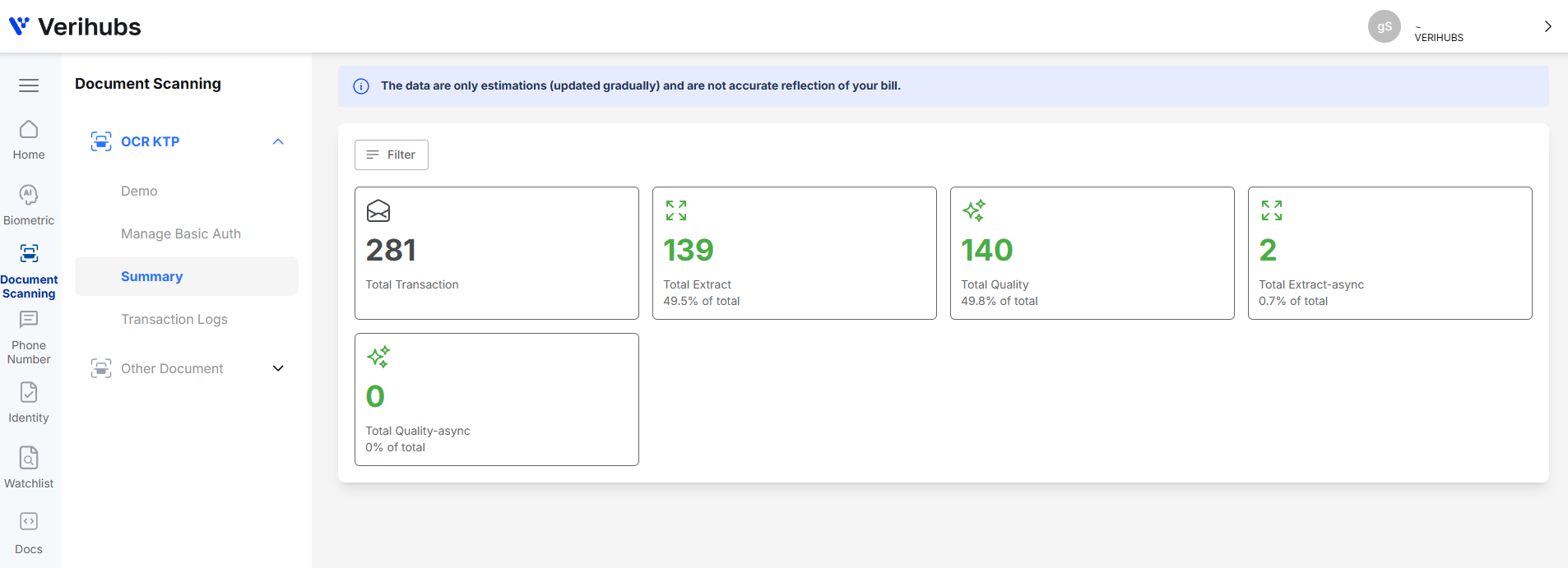
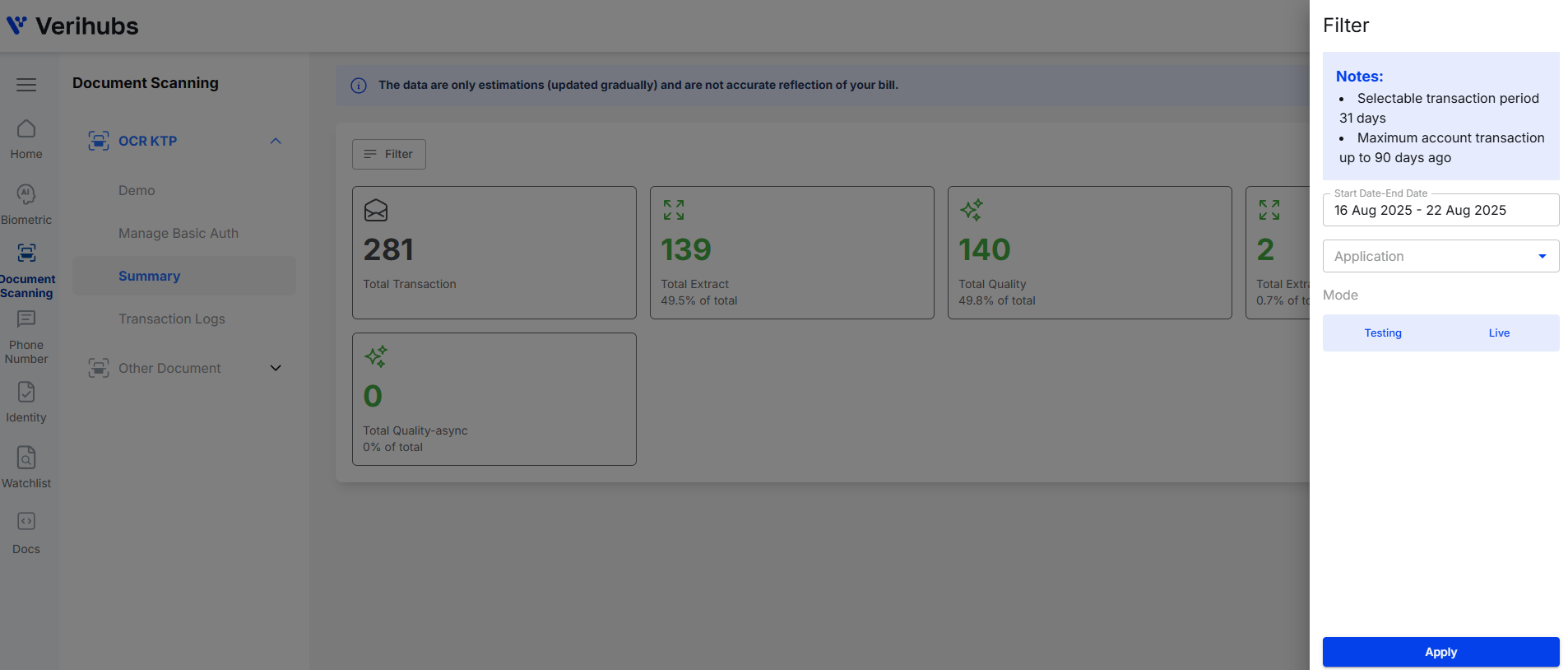
After clicking 'OCR KTP', click on Summary on the sidebar menu, you can check Summary of OCR KTP transactions. In SUMMARY you can see the total transaction of each OCR KTP services. There is also filter button to distinguish the transaction by date, service mode and application id.
🎈TRANSACTION LOGS
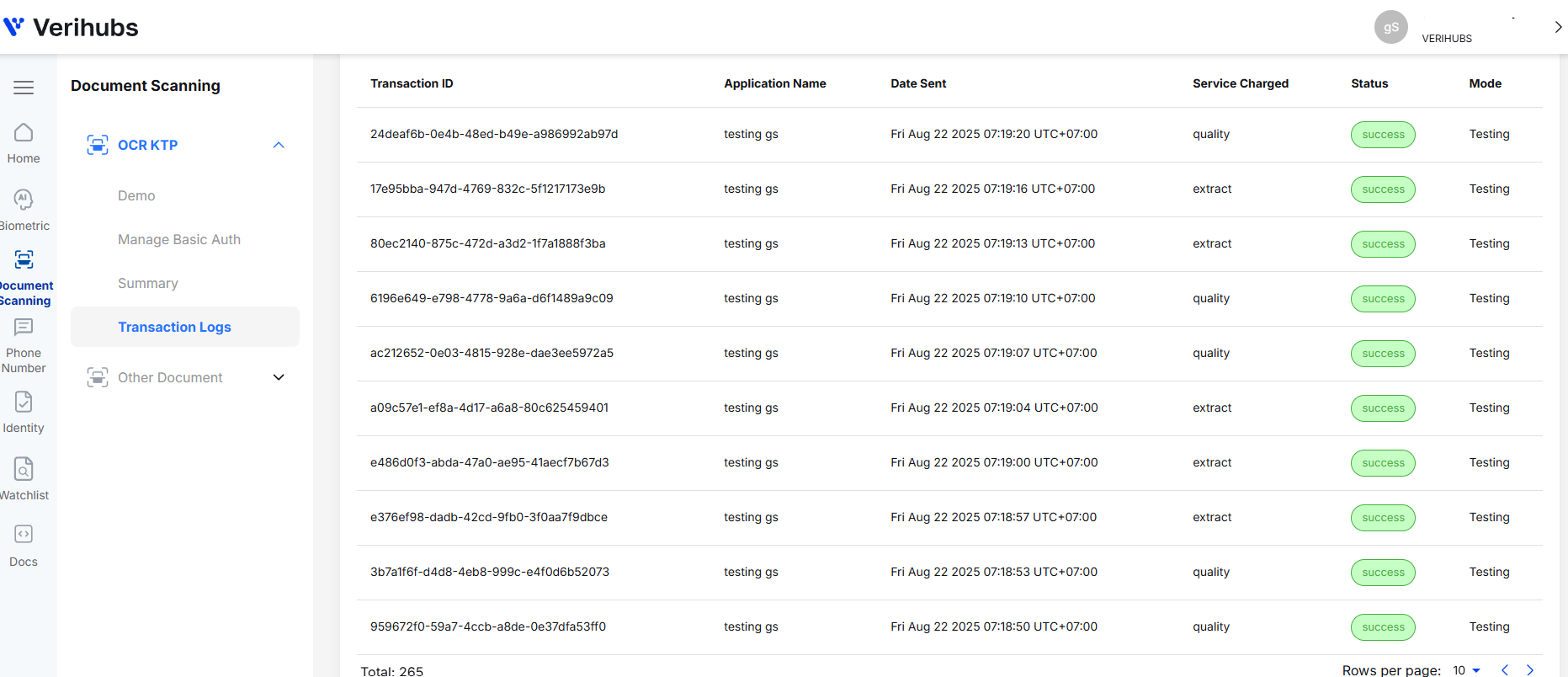
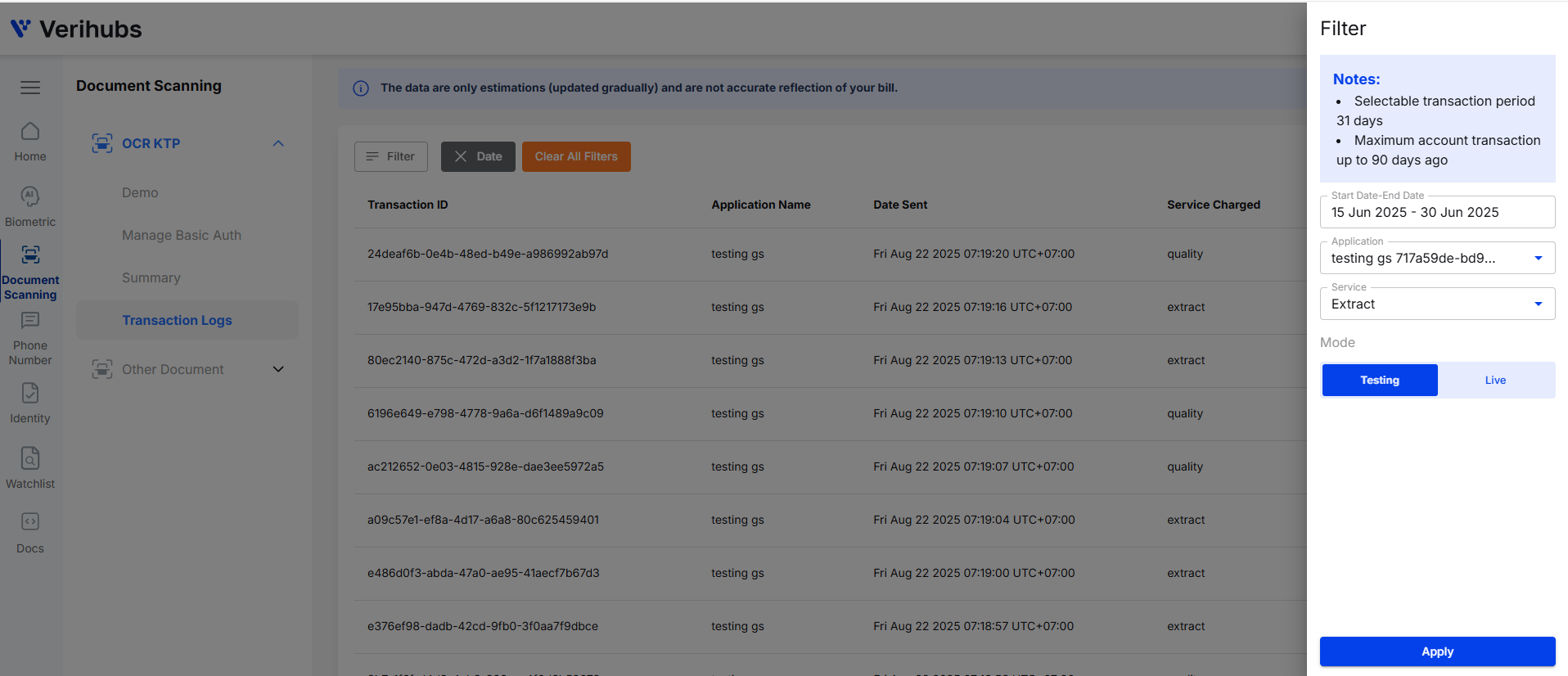
After clicking 'OCR KTP', click on Transaction Logs on the sidebar menu, you can check log details of OCR KTP transactions. TRANSACTION LOGS shows detail of your transaction in the table form, which consists of your transaction ID, application name, date, service charged, transaction status and mode. You can filter the data by date period (max selected date from 90 days ago), application name, service charged and mode. Moreover, the transaction logs shown also can be downloaded in form of XLS or CSV.
Updated 8 days ago