
Internal Blacklist
Will be launching soon!
This page enable you to add your own dataset to be integrated in the Watchlist Screening result. In the dashboard Verihubs will show an icon if a specific name searched are in the list. While in the API verison the addition of new parameter will show the details of the person blacklisted. This menu is only accessible to client that has been assigned by Verihubs Admin. For request, please contact our team.
🎈Internal Blacklist Menu
General Layout
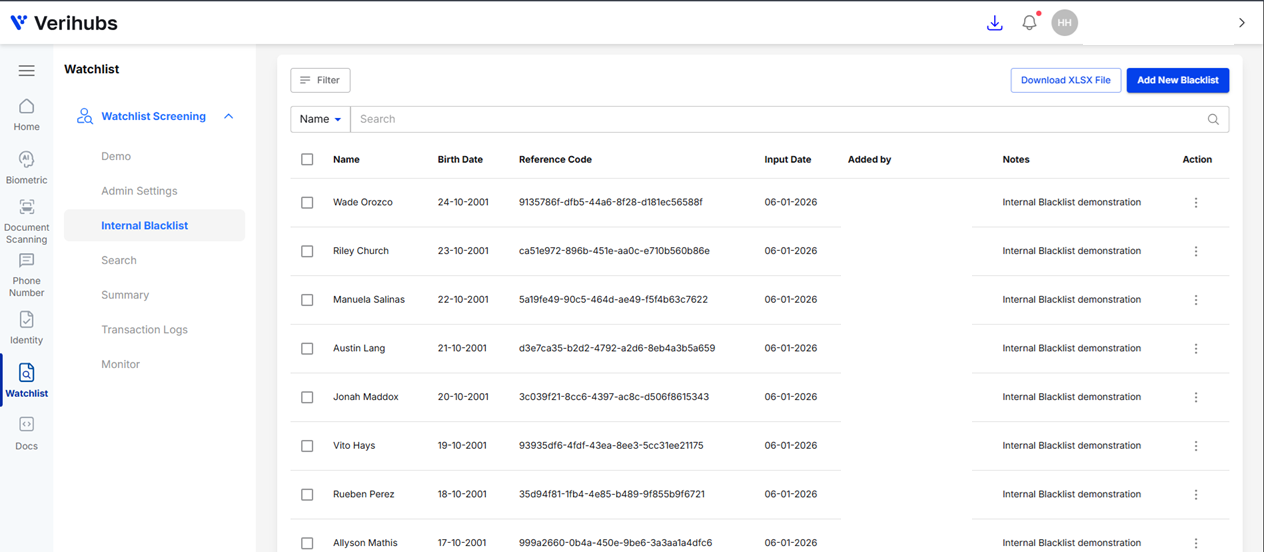
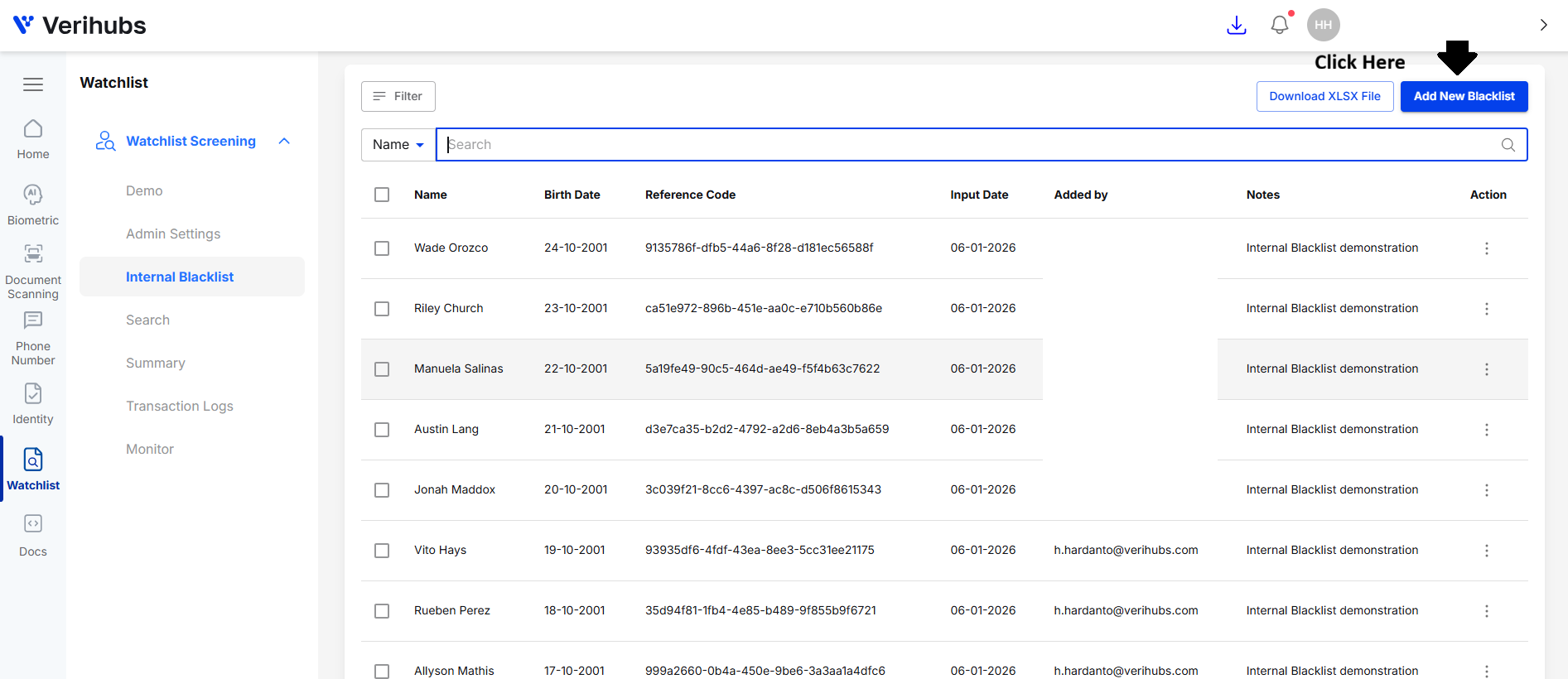
In this menu you can see the data that you have inputted before. If you have not inputted anything, then proceed straight to the How to Input the Data? section below. If you have already inputted the data, then here are the description of the columns:
| Column Name | Description | Note |
|---|---|---|
| Name | The name of the person you've added. | Free text. |
| Birth Date | The birth year of the person you've added. | This can be in DD-MM-YYYY format or N/A if you did not put any birth date when filling the data. |
| Reference Code | Autogenerated code functioning as a differentiator for similar names. | This code can be used to search a profile. |
| Input Date | The exact date on the data submission. | In DD-MM-YYYY format. |
| Added By | The email of the person that add the profile to the dashboard. | For example: [email protected] |
| Notes | Field to input internal notes so the dashboard user can understand the context on why the profile is in the Blacklist. | Maximum 255 character. |
How to Download the Data?
-
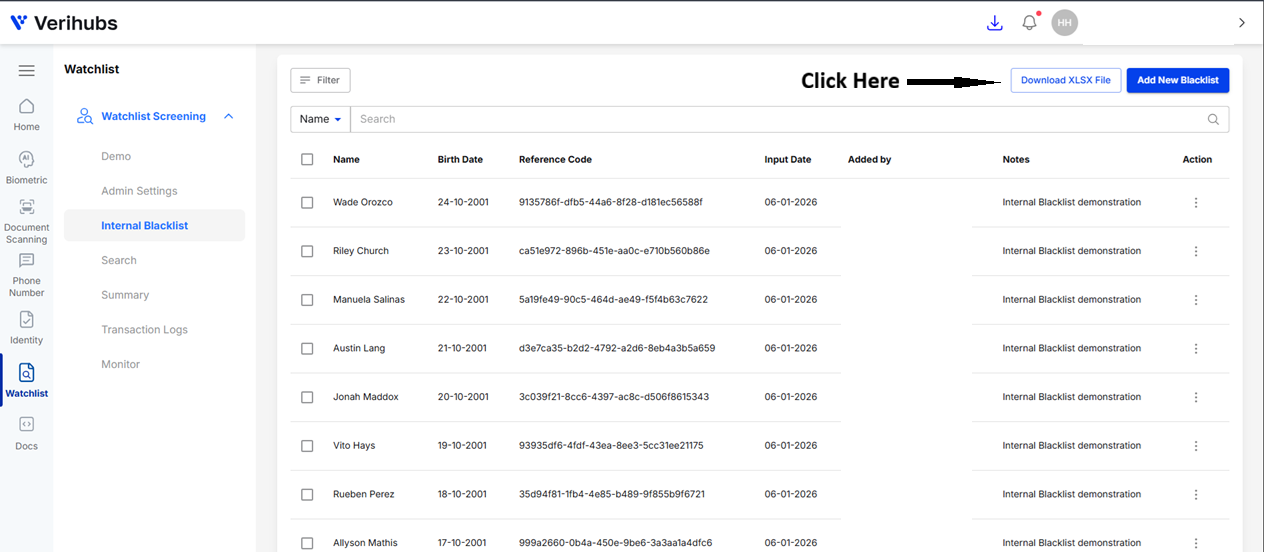
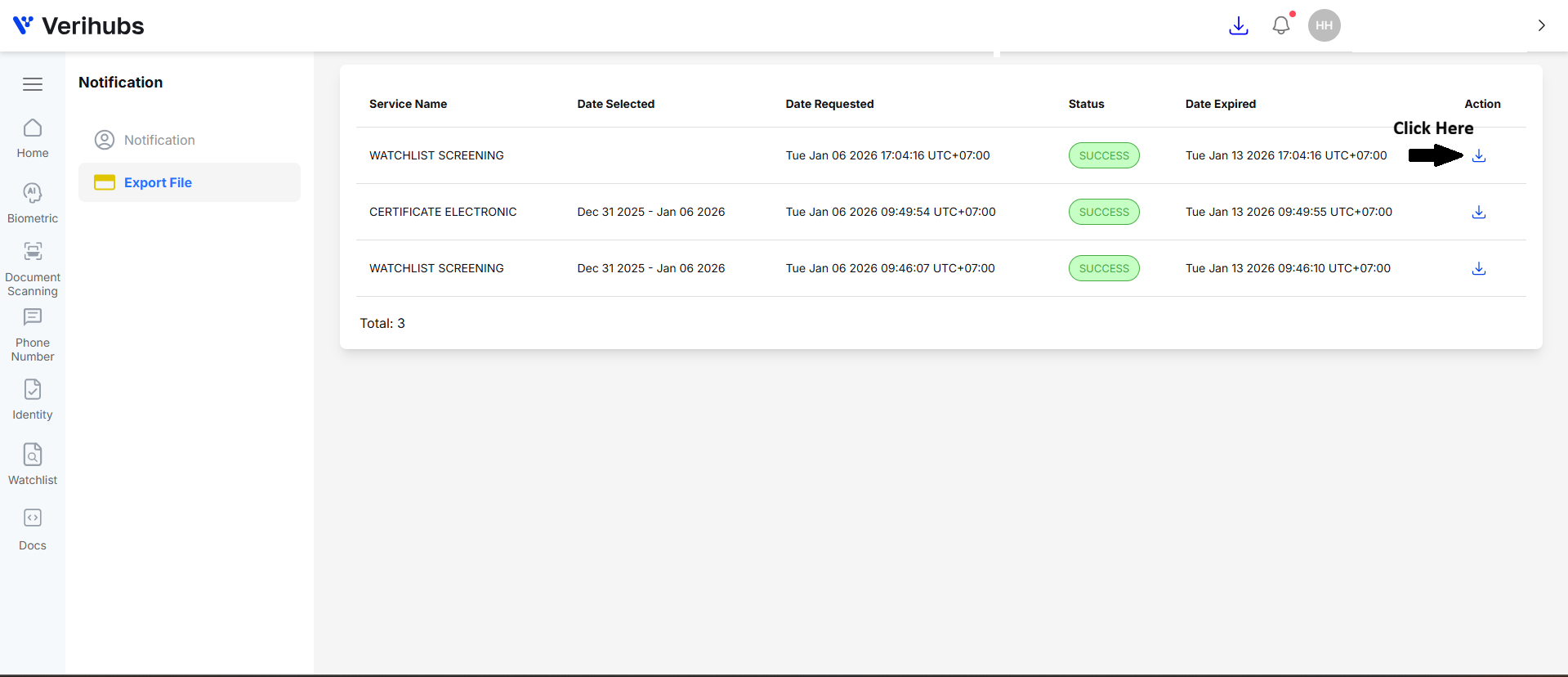
Click the Download XLSX File button. You will be redirected to the Export File page. This is to ensure that how big you dataset is, the download will be prepared in background.
-
Just wait the loading page to complete and a download button will show. Click the button and your file will be downloaded.
🎈How to Input the Data?
There are two ways on how you can input the data. The first one Single input enable you to input a profile at a time, while the Bulk Upload enable you to upload maximum 5 mb of a single XLSX file with the how-to details below.
Single Profile
-
Click the Add New Blacklist button.
-
-
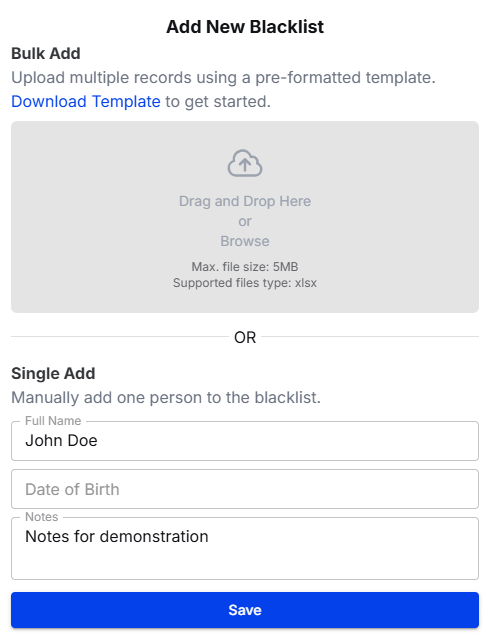
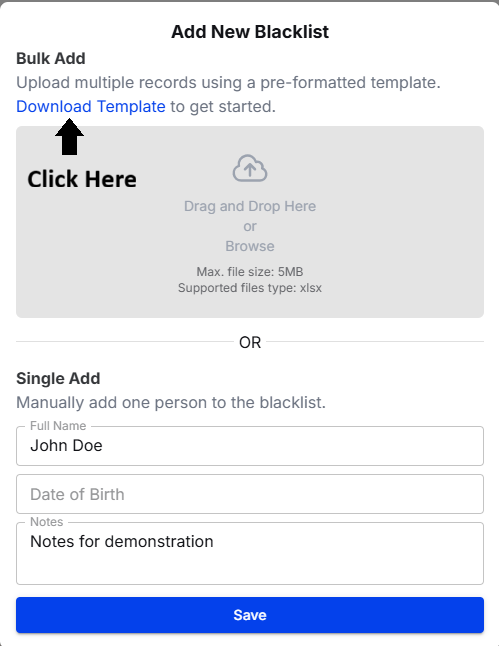
You will be shown two options, the Bulk Add above and the Single Add below. Choose theSingle Add.
-
Only the name is mandatory. Birth date and Notes are optional for your purposes.
- Name: Maximum 255 character.
- Birth Date: Optional, if you want to not input anything just left it empty.
- Notes: Use this field to input anything related to the profile.
-
Click
**_Save_**. The profile will be added to the list.
Multiple Profile in Bulk
-
As we see above, you can also Bulk Add several profiles with a single XLSX file.
-
Download the template via the button shown. The bulk upload follow several strict rules to ensure the data can be uploaded seamlessly.
- Fill the template by following these rules:
- name: mandatory, max. 255 character
- birth_date: optional, input null if you do not have a birth date to be inputted, or input in YYYY-MM-DDD if available.
- note: optional, input with anything related to the profile.
- Upload the file in the Drag and Drop area.
- Click Save, and the profiles will be added.
🎈How Can I Know If a Profile is in the Blacklist?
Via Verihubs Dashboard
-
If a profile is in your Blacklist. Then when you get a search result or open the profile detail via Transaction Logs an alert will appear on the top left side of the page namely
Match found in your Blacklist record. Verihubs use the name as the sole identifier.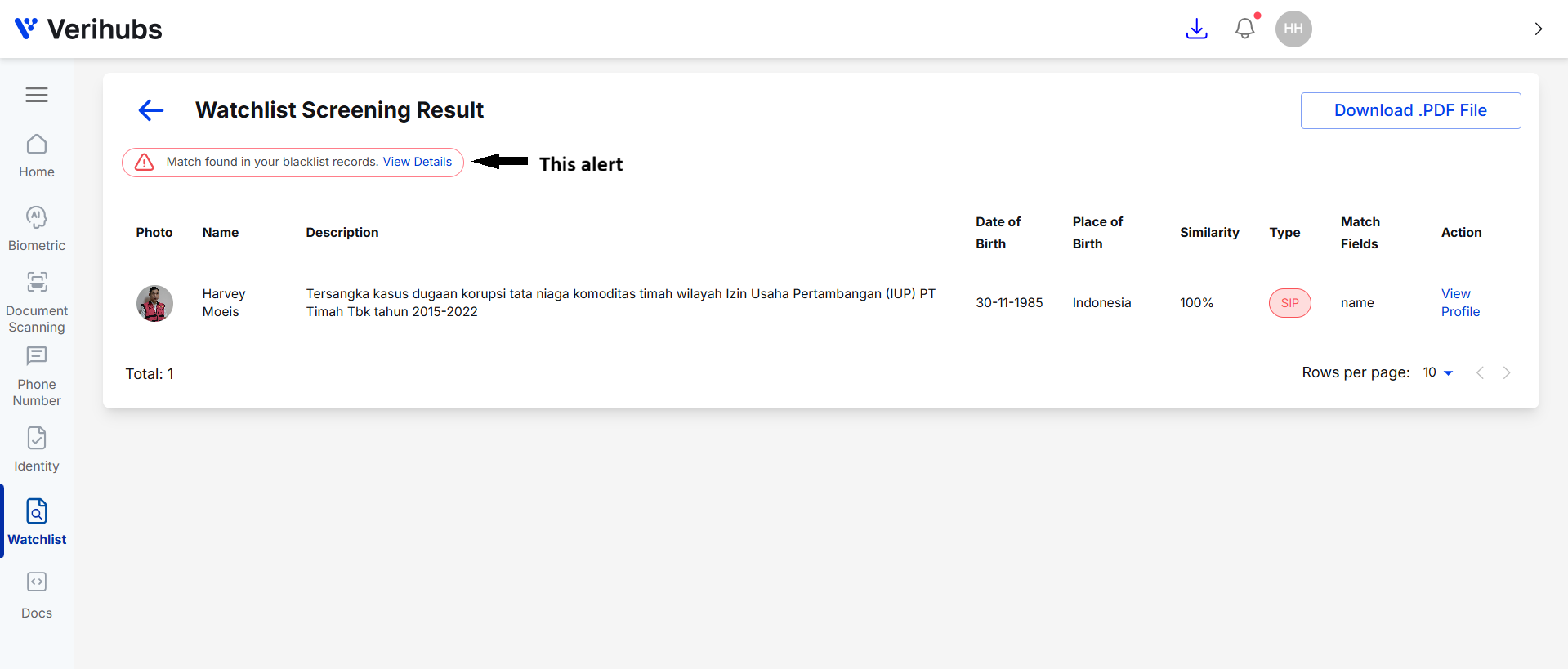
-
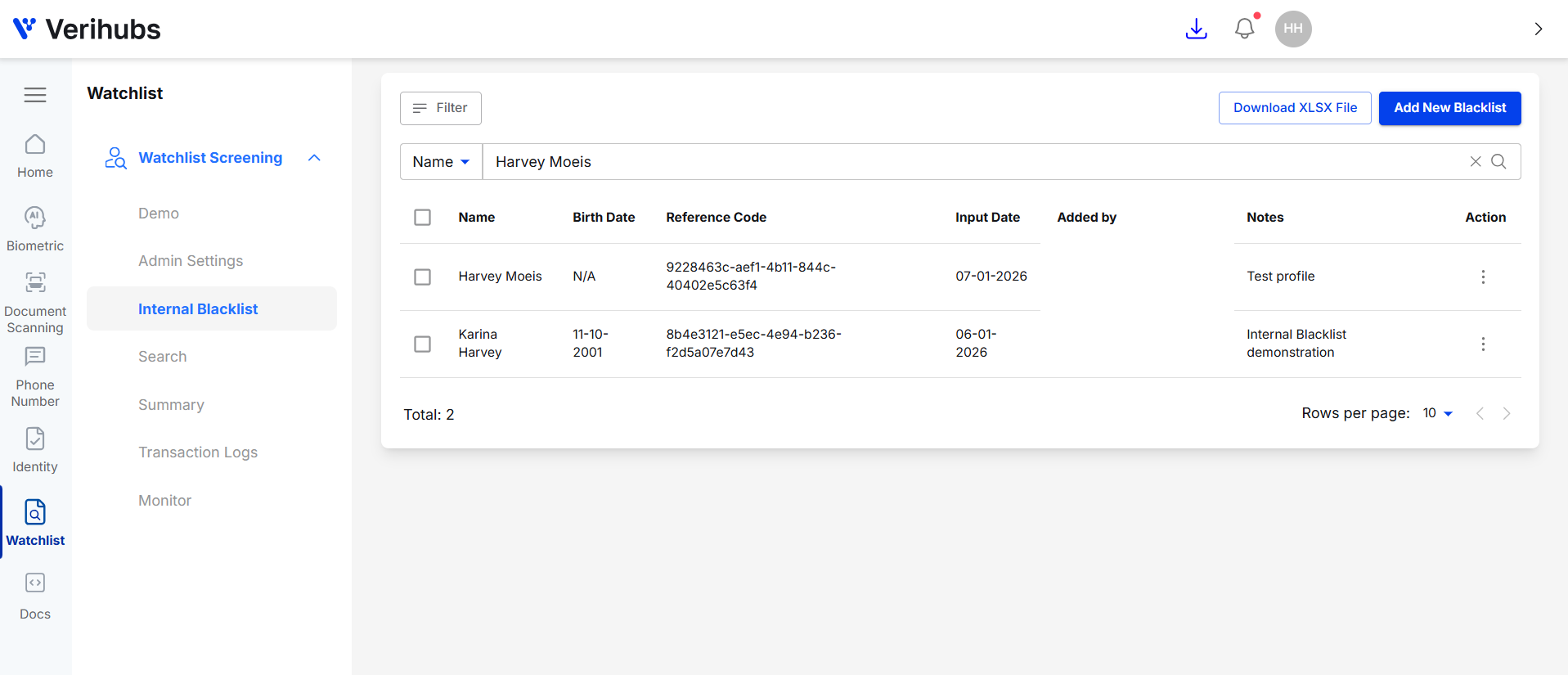
Click the View Details hyperlink, you will be redirected to the Internal Blacklist page with name filtered to the name you searched. Verihubs use a system where every profile inputted that contain the name searched will be shown.
Via API Resopnse
You can refer to the API Request & Response section for this matter.
Updated 9 months ago