
Callback Setting
Tell Verihubs where to automatically send the result of each SMS, so your own system always knows what happened to a message without you checking the Dashboard.
What is a callback? A callback is an automatic message that Verihubs sends to your system when something happens, for example when a text message is delivered or fails. You do not have to ask. Verihubs calls you back.
What is a webhook? A webhook is the web address (URL) on your system that receives these automatic messages. Think of it as a mailbox that Verihubs drops updates into. Your developer creates the mailbox, and you give us its address.
Why use it? Without a callback, the only way to learn the result of a message is to open the Dashboard or ask the Verihubs API again and again. With a callback, your system is told as soon as the result is known.
Who Should Use This Page
Callback Settings is mainly for developers, because it needs a web address that can receive data. If you are not a developer, ask your technical team to create the webhook address, then you or they can enter it here.
Before You Start
You need:
- A Verihubs account, logged in to the Dashboard.
- At least one Application in your account.
- A webhook URL: the address on your system that will receive callbacks. Your developer provides it.
- Optional: a token (a secret password) that Verihubs includes with each callback, so your system can check that the message really comes from Verihubs.
What is a URL? A URL is a web address, such as https://example.com/callback.
Requirements for your webhook URL
| Requirement | Detail |
|---|---|
| Starts with https:// | HTTPS is required |
| Reachable from the internet | Verihubs must be able to reach it. An address that only works inside your office network will not receive callbacks. |
Understand the List
The page lists every callback setting you have created. Each one is shown as a card.
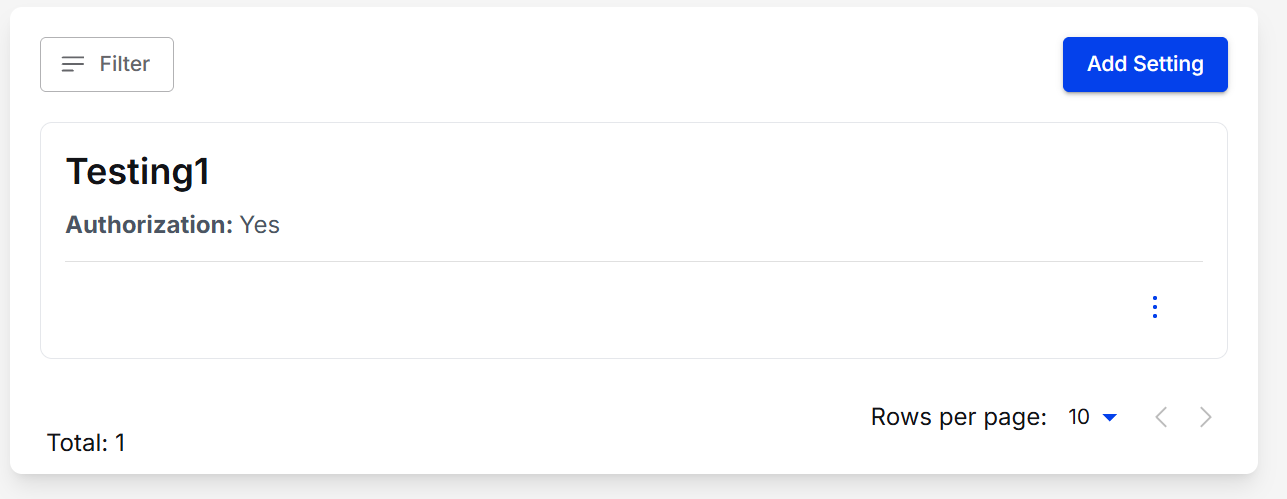
| Part of the card | What it means |
|---|---|
| Name (the large text, for example Testing1) | The setting's name. |
| Authorization | Yes means a token is added to each callback, so your system can verify it. No means callbacks are sent without a token. |
| Three-dot menu (⋮) at the bottom right | Opens the actions for that setting. |
At the top of the page:
- Filter narrows the list.
- Add Setting creates a new callback setting.
At the bottom:
- Total shows how many settings you have.
- Rows per page sets how many are shown at once. The default is 10.
- The arrows (< and >) go to the previous or next page.
Add a Callback Setting
- On the Callback Settings page, click the blue Add Setting button at the top right. A form opens.
- Fill in the form (see the table below).
- Click Add Now.
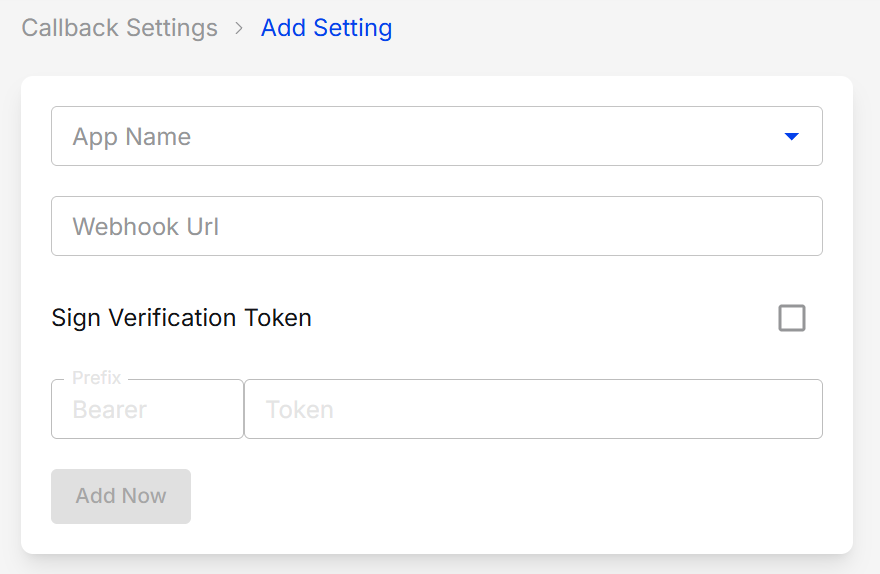
| Field | What to enter | Example |
|---|---|---|
| App Name | Choose the Application whose callbacks you want to receive. | My Test App |
| Webhook Url | The address on your system that will receive the callbacks. It must be the full address, including https://. | https://yourcompany.com/verihubs/callback |
| Sign Verification Token | A checkbox. Tick it if you want Verihubs to add a secret token to every callback. See "About the Verification Token" below. | Ticked |
| Prefix | The word that goes before the token. It is filled in with Bearer. See below. | Bearer |
| Token | Your secret token. See below. | (a long, random secret) |
The Add Now button stays grey until the required fields are filled in.
About the Verification Token
A verification token is a secret password that you choose. Verihubs sends it with every callback. Your system checks it, and ignores any message that does not carry the right token.
Why it matters: Your webhook address is on the internet. Without a token, anyone who knows or guesses the address can send fake messages to it, for example a fake "Delivered" result. The token lets your system tell a real Verihubs callback from a fake one.
- Tick the box to turn it on. Leave it empty to send callbacks without a token.
- We recommend turning it on.
Prefix is a short word placed before the token to say what kind of token it is. The default, Bearer, is the standard word for this type of secret.
How Verihubs sends it: Verihubs adds the prefix and the token together to each callback. With the prefix Bearer and the token abc123, your system receives: Authorization: Bearer abc123.
What is a header? A header is extra information attached to a message, separate from its main content. It is where secrets such as tokens are usually placed.
Keep your token safe
- Choose a long, random token. Do not use a simple word.
- Do not share it in chat, email or documents.
- Store it in your system's secret settings, not in your app's code.
- Change it if you think someone else has seen it. See "Change a Setting".
Change a Setting
- On the Callback Settings page, find the setting you want to change.
- Click the three-dot menu (⋮) at the bottom right of its card.
- Click Edit. The Edit Setting form opens.
- Change what you need. See below.
- Click Edit Now.
| Field | Can you change it? |
|---|---|
| App Name | No. It is greyed out. To use a different Application, add a new setting. [TO CONFIRM] |
| Webhook Url | Yes. |
| Sign Verification Token | Yes. Tick or untick the box. |
| Prefix and Token | Yes, when the box is ticked. The saved token shows as ****** for safety. To replace it, enter a new one. |
The Edit Now button stays grey until you change something.
Changing your token? Update the token in your own system at the same time. If the two do not match, your system will reject real callbacks.
Delete a Setting
- Click the three-dot menu (⋮) on the card.
- Click Delete.
After you delete a setting, Verihubs stops sending callbacks to that address. Results are still visible in the Dashboard.
Frequently Asked Questions
Do I need a callback?
No. It is optional. You can always see message results in the Dashboard and in the Transaction Logs. A callback is useful if your system needs to react automatically, for example to retry a message that failed.
Is the token required?
No, but we recommend it.
Troubleshooting
| Problem | What to check |
|---|---|
| I do not receive any callbacks | Check that the setting exists for the right Application, and that the webhook URL is correct and reachable from the internet. Check that your system's firewall allows Verihubs. Send a demo message to test. |
| My system receives callbacks but rejects them | The token may not match. Check the prefix and token on both sides, and check that your system reads the header correctly. |
| I get callbacks for the wrong Application | Check the App Name of each setting. |
| Add Now or Edit Now is grey | Fill in all required fields, or change something. |
| I cannot change the Application of a setting | The App Name cannot be changed. Add a new setting for the other Application. |
| I changed my token and callbacks stopped working | Update the same token in your own system. |
Updated 2 days ago