
Demo SMS Bulk Announcement
Send the same text message to many phone numbers at once, by uploading a list of numbers from the Verihubs Dashboard.
What is a Bulk Message? A Bulk Message is one message sent to many people at the same time. Instead of typing each phone number, you put all the numbers in a spreadsheet file and upload it.
Single Message or Bulk Message? To send to just one phone number, use Single Message instead. [LINK: Demo SMS Announcement: Single Message page]
Before You Start
You need:
- A Verihubs account, logged in to the Dashboard.
- At least one Application ID in your account. You will need to create one if you don't have any.
- Remaining quota large enough for all your recipients. See "About Remaining Quota" below.
- A spreadsheet program that can open .xlsx files, such as Microsoft Excel or Google Sheets.
What is an .xlsx file? It is a spreadsheet file made by Microsoft Excel. Google Sheets can also create it: open your sheet, then click File > Download > Microsoft Excel (.xlsx).
What is an Application? An Application is a project you create in Verihubs to represent your app or service. It keeps your usage, settings and records separate from your other projects.
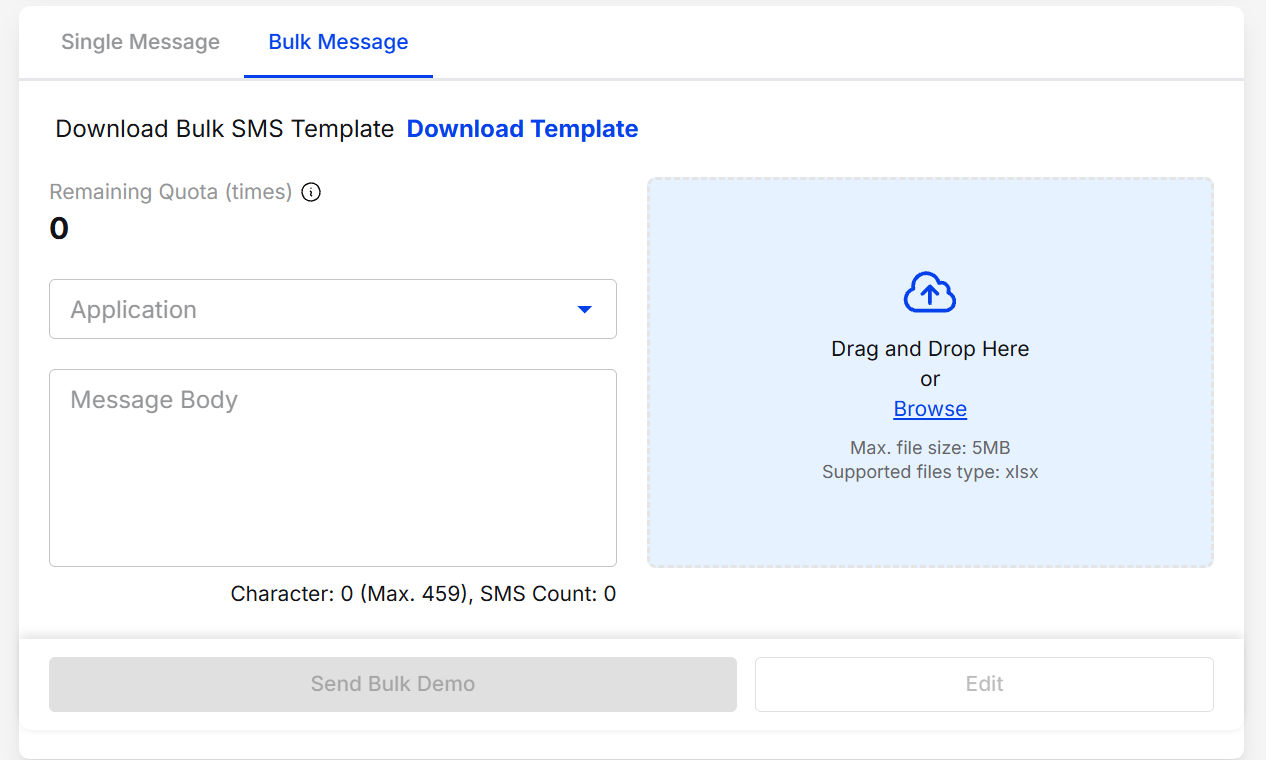
Step 1: Download and Fill In the Template
The template is a ready-made spreadsheet. Using it makes sure your file is in the format Verihubs expects.
- At the top of the page, click Download Template.
- Open the downloaded file in Excel or Google Sheets.
- Enter one phone number per row, under the msisdn column.
- Save the file in .xlsx format.
Rules for the file:
| Rule | Detail |
|---|---|
| File type | .xlsx only. Other types, such as .csv or .xls, are not accepted. |
| File size | Maximum 5 MB. |
| Phone number format | Use one of these format shown in the picture |
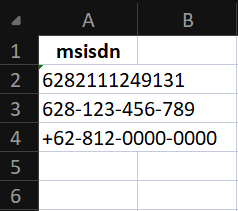
Tip: Do not change the column headings or add extra columns, or the upload may fail.
Step 2: Fill In the Form
| Field | What to enter | Example |
|---|---|---|
| Application | Choose the Application you want to send from. | My Test App |
| Remaining Quota (times) | Not a field you fill in. It shows how many demo messages you can still send. See below. | 10 |
| Message Body | The text every recipient will receive. The maximum is 459 characters. See below. | test bulk |
About Remaining Quota
The Remaining Quota (times) number shows how many more demo messages you can send.
If it shows 0, you cannot send a demo. Click Contact Us to ask for more quota.
About Character and SMS Count
Below the Message Body box you will see a line like this:
Character: 0 (Max. 459), SMS Count: 0
- Character is the number of letters, digits, spaces and symbols in your message. The maximum is 459.
- SMS Count is the number of separate text messages your message will be split into.
Step 3: Upload Your File
Add your .xlsx file in the gray upload area on the right. There are two ways:
- Drag and drop: Drag the file from your computer and drop it into the gray area.
- Browse: Click Browse, choose the file from your computer, then click Open.
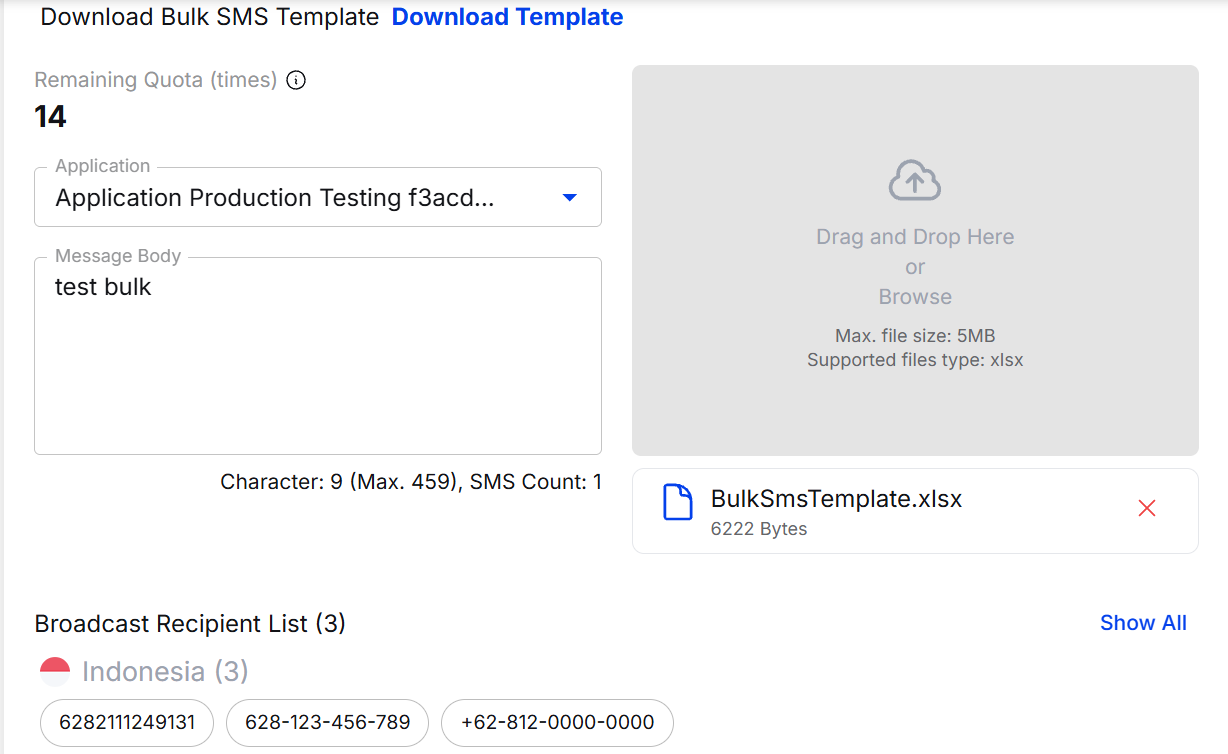
Step 4: Send the Bulk Demo
- Check the Application, message and uploaded file.
- Click Send Bulk Demo.
The Send Bulk Demo button is grey and cannot be clicked until the form is complete.
What happens next:
- Verihubs sends your message to every phone number in the file.
- Your Remaining Quota goes down.
What Does the Edit Button Do?
Next to Send Bulk Demo there is an Edit button. You can edit the recipient list, such as removing unwanted phone numbers.
Check That the Messages Were Delivered
To see the status of each message, open the SMS Log. It lists every message you sent.
Troubleshooting
| Problem | What to check |
|---|---|
| I cannot upload my file | Check that the file ends in .xlsx and is smaller than 5 MB. |
| Send Bulk Demo is grey | Make sure you chose an Application, wrote a Message Body and uploaded a file. |
| Some numbers did not receive the message | Check those numbers for typing mistakes, then look for them in the SMS Log. |
| Remaining Quota is 0 or too low | Click Contact Us to request more. |
Updated 2 days ago